
Clean The Swimming Pool Clean The Pool Controls
PC and mobile inputs for scooping, selling, shopping, and navigating Chapter 2 pools.
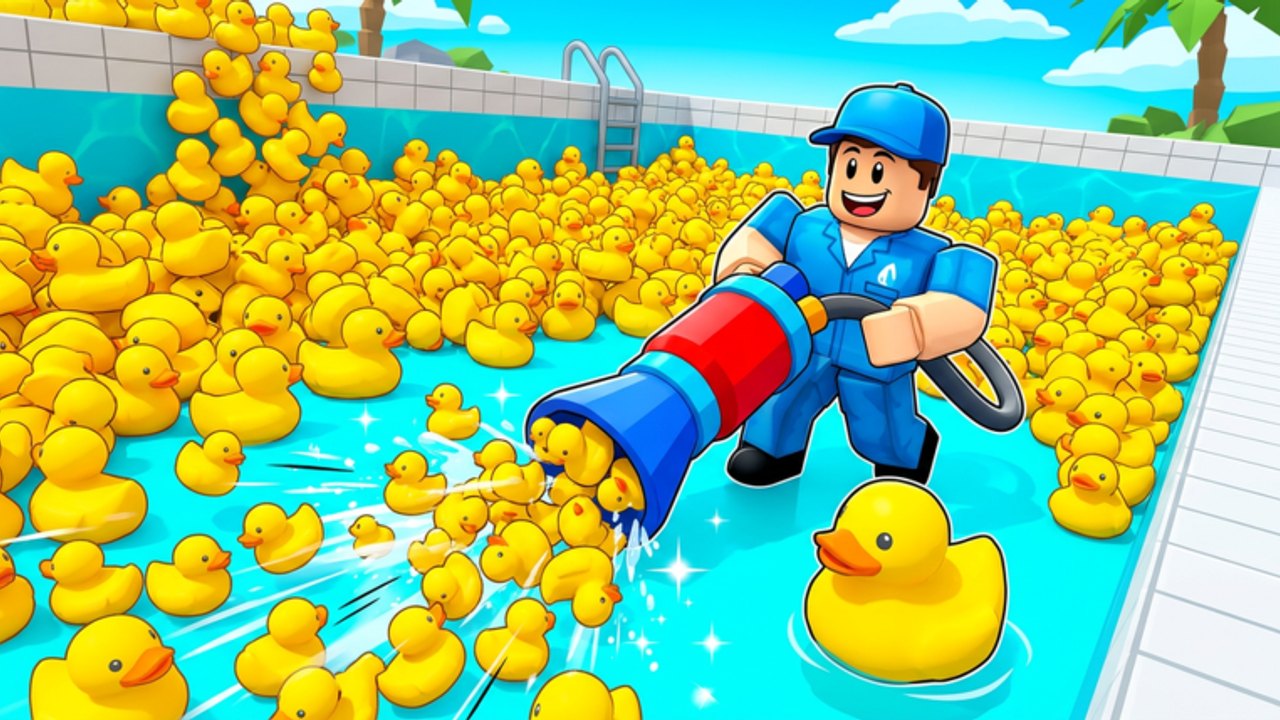
Clean The Swimming Pool (Roblox title [CHAPTER 2] Clean The Pool by Felbolt Studios) plays like a classic incremental simulator: move around the pool, scoop rubber ducks into your bag, walk to the dumpster, cash out, then spend money on speed, storage, earnings, and tools. This page documents the controls and HUD habits players need on day one. Pair it with Getting Started for the full first-session loop and How to Scoop Fast once movement feels natural.
Core actions (every platform)
Regardless of keyboard or touch, every productive minute uses the same four verbs:
- Move to dense duck clusters in the water.
- Scoop / collect ducks into your carry storage.
- Travel to the dumpster when the bag is full or nearly full.
- Sell / deposit, then open the upgrade shop or equip a better tool.
If any of those four feels sticky, fix that first before hunting rares or buying Robux passes. The dumpster and money guide explains sell timing; the gamepasses tier list covers paid shortcuts.
PC / keyboard & mouse
Most desktop players use Roblox defaults:
- W A S D — walk / run around the pool deck and water.
- Mouse — look / aim toward ducks and UI buttons.
- Left click or the on-screen scoop / interact prompt — pick ducks when you are in range.
- E or the highlighted proximity prompt — confirm dumpster sells, shop NPCs, and tool pickups when Roblox shows a prompt.
- 1–0 / hotbar clicks — switch equipped tools once you unlock Vacuum, Dynamite, or other scoops.
- Esc → Roblox menu — leave, reset character, or adjust graphics if ducks are hard to see.
Shift-lock (if enabled in Roblox settings) helps keep facing consistent while you circle the pool edge. Turn it off if it fights your scoop camera.
Mobile / touch
On phone and tablet:
- Left thumbstick — move.
- Right drag — camera.
- On-screen jump — rarely needed for the core loop; use it only to clear low obstacles on expanded Chapter 2 layouts.
- Tap proximity buttons — scoop, dumpster deposit, and shop entries appear as labeled buttons when you stand close enough.
- Hotbar icons — tap to equip the next tool.
Mobile players should lower graphics slightly if duck silhouettes blur in dense water. Readable ducks beat max particles when you are learning routes.
HUD checklist after spawn
Spend thirty seconds mapping the interface before your first scoop marathon:
- Cash / money counter — updates after every dumpster sell.
- Storage / bag meter — shows how full your carry is; sell before it caps if walking feels sluggish.
- Tool hotbar — confirms which scoop is active.
- Shop / upgrades button — opens speed, storage, earnings, and tool purchases.
- Gamepass or shop tabs (if present) — separate from free upgrades; see gamepasses.
- Codes / gift icon (if Felbolt adds one later) — tracked on the codes hub; none confirmed as of November 2026.
If a YouTube clip shows a button you lack, prefer the live HUD. Chapter 2 updates can move icons without changing the scoop → dumpster fantasy.
Scoop interaction tips
- Stand close enough for the prompt; spam-clicking from the deck rarely works.
- Keep moving along the water edge so new ducks enter range without spinning in place.
- Watch the bag meter—scooping while full wastes time; sprint to the dumpster instead.
- After buying a stronger tool (Vacuum, Dynamite, etc.), re-check the hotbar so you are not still using the starter scoop.
- In 12-player lobbies, do not stand on top of teammates’ scoop cones; parallel lanes clear faster. See the players hub.
Dumpster and shop controls
The dumpster is the cash-out point named in Felbolt’s official description. Walk into its prompt zone and confirm the sell. Some accounts later unlock Permanent Auto Deposit as a gamepass (not always for sale)—until you have it, manual proximity sells are the baseline. After selling:
- Open the upgrade shop from the HUD.
- Buy storage or speed first when early (upgrades guide).
- Equip any newly unlocked tool from the hotbar.
- Return to water without lingering in menus.
Settings that actually help
- Graphics quality — high enough to spot rare duck colors, low enough to keep 60 FPS on mid-range devices.
- Camera sensitivity — slightly lower on mobile to avoid overshooting scoop prompts.
- Volume — keep SFX on if scoop confirmations are audio-cued; mute music if it hides callouts in co-op voice chats.
- Shift lock / immersion — personal preference; consistency matters more than the mode itself.
Common control mistakes
- Chasing one duck across the entire pool while the bag is already full.
- Forgetting to re-equip after a tool unlock.
- Opening the Roblox escape menu mid-sell and canceling the prompt.
- Buying a gamepass mid-run without reading what it does (gamepasses list).
- Assuming Steam “Pool Cleaning Simulator” keybinds apply—this is a different Roblox experience.
Practice drill (five minutes)
- Scoop until the bag is roughly 80% full.
- Sprint the shortest dumpster path you can find.
- Sell, buy one storage or speed node, re-equip.
- Repeat twice without opening social menus.
- On the third loop, glance for a rare duck without abandoning the dumpster timer—habits from rare ducks.
When the drill feels automatic, graduate to route optimization in How to Scoop Fast and keep an eye on updates whenever Chapter content reshapes the map.
Controls will not grind for you, but clean inputs make every upgrade and tool purchase feel immediate. Master move → scoop → sell → shop, then layer rares, co-op etiquette, and paid passes on top.
Frequently Asked Questions
Quick answers about Clean The Swimming Pool.
What are the basic Clean The Pool controls?
Move with WASD or the mobile stick, scoop ducks with click/tap prompts, sell at the dumpster proximity prompt, then open the shop to buy speed, storage, earnings, or tools.
Does mobile play differently from PC?
The verbs are identical. Mobile uses on-screen stick, camera drag, and tap prompts instead of WASD and mouse. Lower graphics if ducks become hard to see.
Is there an auto-deposit control?
Baseline play uses a manual dumpster prompt. A Permanent Auto Deposit gamepass exists in the universe catalog; check the gamepasses page for sale status and value.
Where do I open upgrades?
Use the in-experience shop / upgrades HUD button after a dumpster sell. Free upgrade tracks are separate from Robux gamepasses.
Are codes entered from the same menu?
Only if Felbolt adds a Codes UI. As of November 2026 no active codes are confirmed—see the codes hub before hunting a redeem box.